
How to Check if a User with a Specific Email Exists
This tutorial explains the process of configuring a JetFormBuilder form to verify if an email address is already present in a meta field; if a match is found, the system will show an error and block the redundant entry.
Table of Contents:
When creating forms, it may be necessary to prevent users from entering the same value in multiple fields. This can be handled within the form using the Advanced Validation functionality. However, if you need to compare user input with values that are not in the form, but stored somewhere in a database, a different approach is needed. In this guide, you will learn how to set up validation in the JetFormBuilder WordPress plugin so that every form field input is checked for uniqueness. This helps improve data accuracy and prevents duplicate submissions.
In this guide, you will learn how to set up a JetFormBuilder form that checks whether an email has already been saved in a meta field. If the email exists in your database, the form will display an error message and prevent duplicate submissions.
This method works when the values you are validating do not belong to the current form or page — they must exist in your database.
Install the Addon
So, first of all, install the JetFormBuilder – JetEngine Query Actions addon.
Download a zip file by clicking the “Code” button and “Download ZIP”.
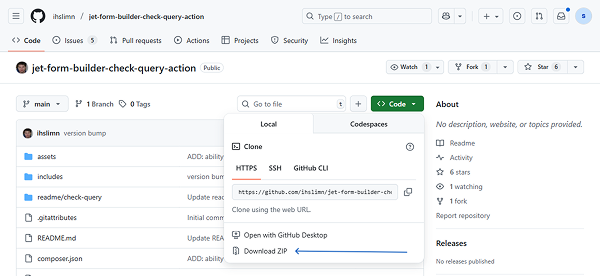
Then, proceed to WordPress Dashboard > Plugins > Add Plugin and click the “Upload Plugin” button. Select the file and install it as you would normally.
Field for Email
Let’s consider a scenario where you build an event registration form using JetFormBuilder. In this form, users submit the following details: their name, email, and company name.
This is not a WordPress user registration form, so the built-in “Register User” action, which automatically checks for duplicate emails, is not used.
Instead, all submitted data is stored in a Custom Content Type (CCT) (in our case, you can store the fields elsewhere on the site) with three Text fields: “Name”, “Email”, and “Company.”
The task is to prevent duplicate submissions based on the email address. In other words, before saving a new form entry, you need to:
- check if the submitted email already exists in the “Email” field of the CCT;
- block the form submission if a match is found.
This ensures that each email can only be used once for registration.
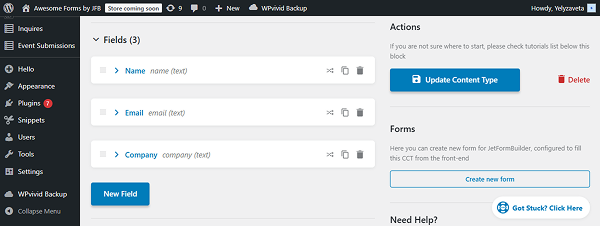
This CCT stores every submitted registration. The goal is to prevent new submissions if the same email address already exists in the “Email” field in this database.
Build a Form
To build a WordPress form, we navigate to WordPress Dashboard > JetFormBuilder > Add New Form.
Enter the form’s title.
The Welcome block appears by default. From here, you can select a form pattern or generate a form with OpenAI. In this case, we hit the “Start from scratch” button.
We keep the Text Field and add two more for “Name”, “Email”, and “Company Name”.
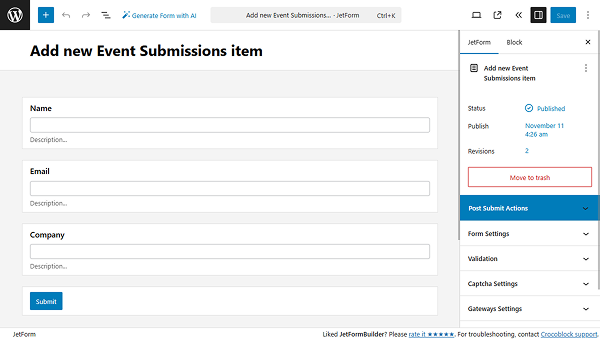
Create a Custom Query
In the new tab, proceed to WordPress Dashboard > JetEngine > Query Builder and click the “Add New” button.
Type the Query Name and select the “Custom Content Type” Query Type.
Scroll down to the Сontent Query settings tab and select the needed From Content Type (“Event Submissions” in this case).
Then, proceed to the Query tab and click the “Add new” button.
In the Field, choose the field name (“Email” in this case). Select the “Equal (=)” operator for the Compare field. In the Value field, select the “JFB Check Query – Form Field Value” option and enter the field’s name that you have copied from your form (“email” in this tutorial) and click the “Apply” button. Keep the data Type empty.
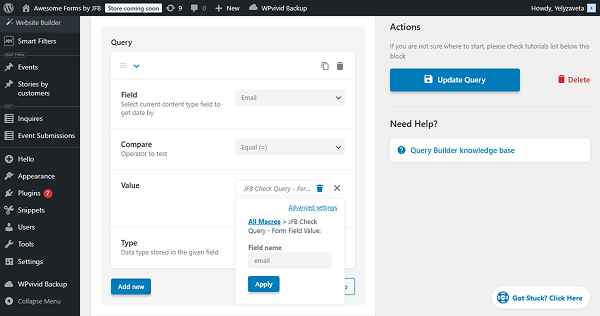
Click the “Update Query” button.
Adjust the submit action
Return to the form settings and in the right-side settings section, open the Post Submit Actions tab and click the “New Action” button. Select the “Check Query Result” action.
In the newly opened pop-up, select the query you created before in the QUERY TO CHECK dropdown. Then, set the ERROR MESSAGE (e.g., “This email already exists”).
Click the “Update” button.
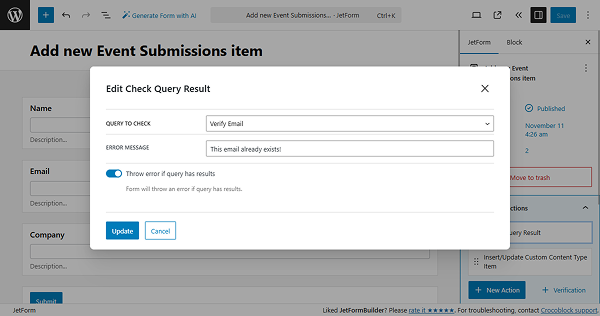
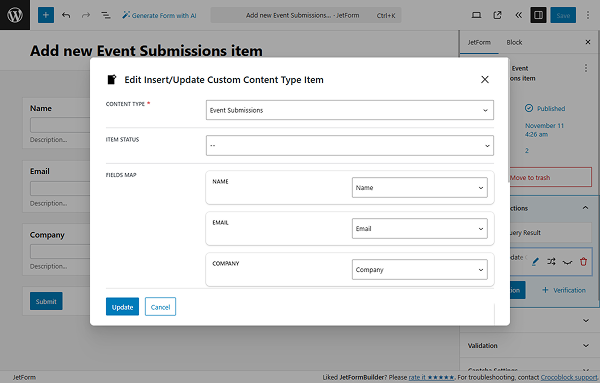
Additionally, we add the “Insert/Update Custom Content Type” action to submit the events.
In the action’s settings, map the existing fields — “name”, “email”, and “company” with the fields from the CCT (or other storage) you’ve created earlier.
The add-on mentioned in the beginning will first check whether the email the user is about to submit already exists in the “Email” field of the event registration CCT.
Once you are ready, press the “Publish” button.
Add the Form to the Page
Proceed to the page where you need to display the form. Refer to our How to Display a Form on the Front End guide if you are unsure about the settings.
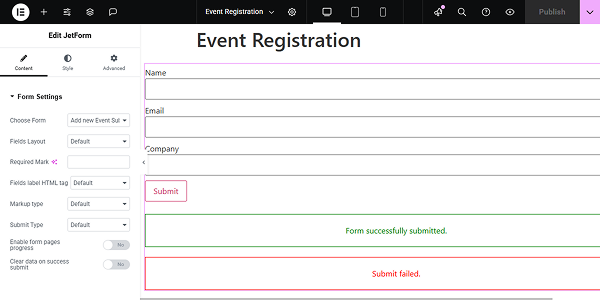
Click the “Publish” button once you are ready.
Check the Results
Now, open the front-end page and copy an existing email. Enter the email into the form and click the “Submit” button.
We get the error message.
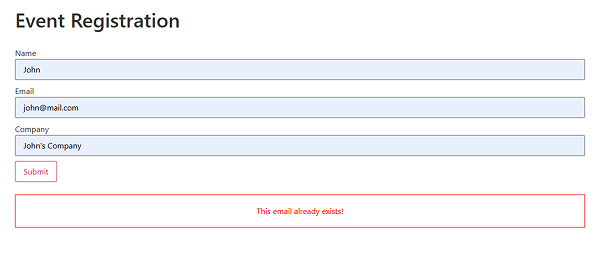
If you enter a new, unused email address, the form will submit successfully, and the new entry will be added to the CCT.
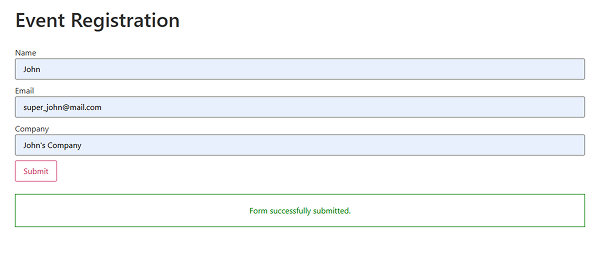
That’s it. Now, you know how to prevent duplicate email submissions in JetFormBuilder using a CCT from the JetEngine plugin and the “Check Query Result” action.