
Calculation Formulas Guide
The Calculated Field, in tandem with smart formulas let you create highly dynamic JetFormBuilder formulas. Thus, you can perform not only simple arithmetic calculations but also advanced mathematical operations, such as rounding, exponentiation, conditional and comparison statements, and various calculations for JetBooking. In this guide, you will discover how each formula works and how to use it effectively in your calculations.
Table of Contents:
- Arithmetic Operators
- Advanced Calculations
- Conditional Statements
- Comparison Operators
- JetBooking Calculations
Arithmetic Operators
The Calculation Field supports basic formulas for addition, subtraction, multiplication, and division.
Addition
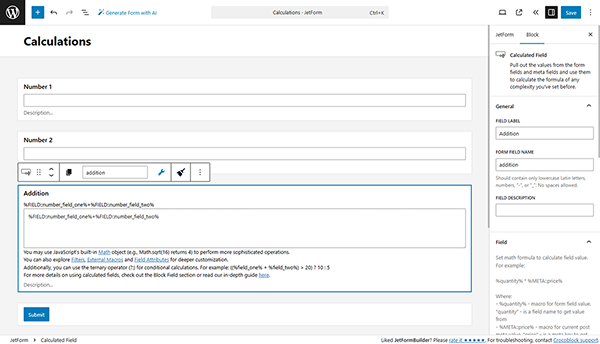
You need at least two Number Fields to sum. Inside your Calculated Field, the following formula:
%FIELD::number_meta_field_1%+%FIELD::number_meta_field_2%Here, “number_meta_field_1” is a form Number Field #1 name, and “number_meta_field_2” is a form Number Field #2 name.
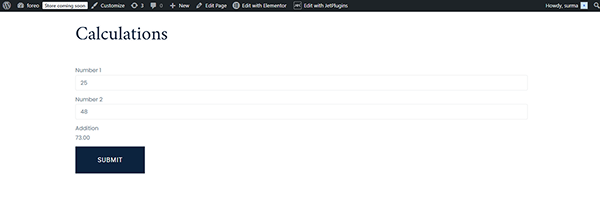
Save the changes, and on the front end, whatever numbers we add to the Number Fields are correctly summed in the Calculation Field below.
Subtraction
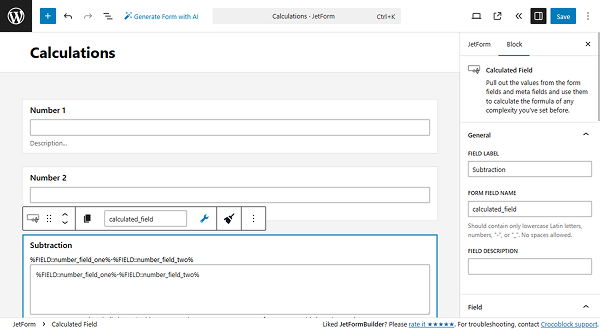
Ensure you have two Number Fields in the form. Add the following formula to the Calculated Field:
%FIELD::number_meta_field_1%-%FIELD::number_meta_field_2%Instead of the “number_meta_field_1”, use the form Number Field #1 name, and type the form Number Field #2 name instead of the “number_meta_field_2”.
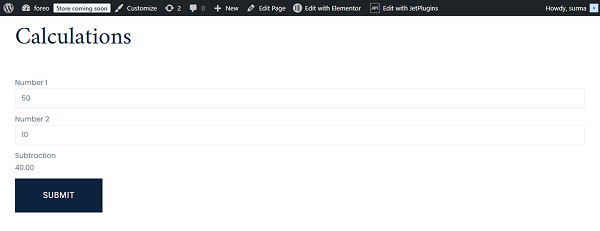
Publish the settings and proceed to the front end. Here, the subtraction is completed correctly.
Multiplication
To multiply two Number Fields, add the following formula to the Calculated Field:
%FIELD::number_meta_field_1%*%FIELD::number_meta_field_2%Use the name of the form Number Field #1 instead of the “number_meta_field_1”, as well as use the name of the form Number Field #2 instead of the “number_meta_field_2”.
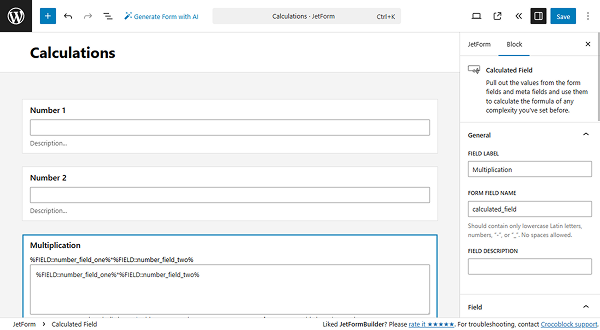
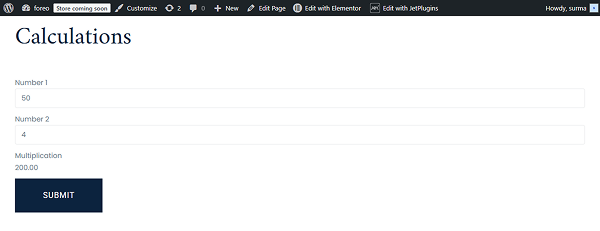
Save the form and check the frontend page. Here, the numbers we add are multiplied correctly.
Division
To divide two numbers, add two Number Fields and paste the following formula into the Calculated Field:
%FIELD::number_meta_field_1%/%FIELD::number_meta_field_2%Here, “number_meta_field_1” is a form Number Field #1 name, and “number_meta_field_2” is a form Number Field #2 name.
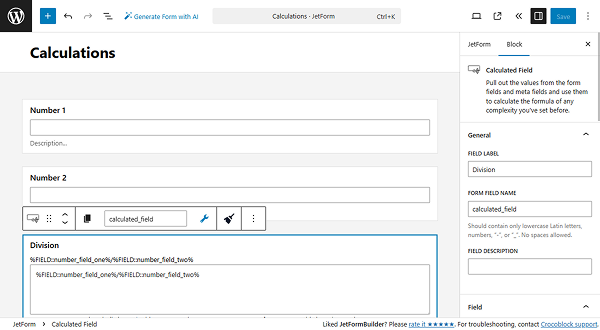
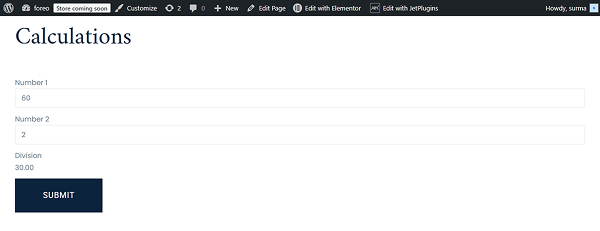
Save the changes and open the frontend page. Here, the calculation result is correct.
Advanced Calculations
The Calculated Field in JetFormBuilder is not limited to basic mathematical operations. It supports all the math object methods, which help perform advanced calculations with numeric values returned by form fields.
Refer to our Advanced Math Calculations tutorial for the detailed guide. In this article, we will summarize the most important information.
Rounding
To round the number to the nearest integer, ensure that you have a Number Field added to the form, and add the following formula to the Calculated Field:
Math.round(%number_field%)Instead of the “number_field”, use the form Number Field name.
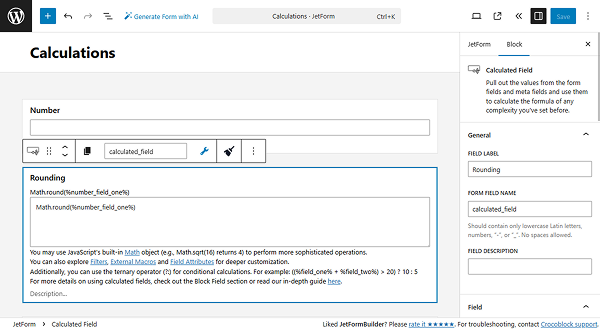
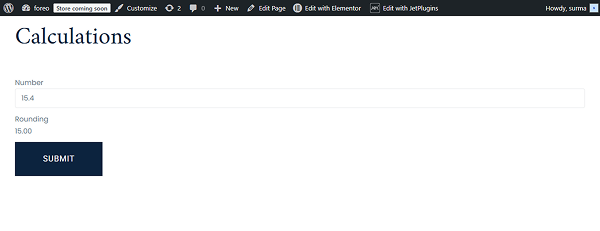
Save the settings and check the front page. The numbers are being rounded correctly.
Rounding up
If you need to return the smallest integer greater than or equal to the specified number, ensure you have the Number Field in the form and paste the following formula to the Calculated Field:
Math.ceil(%number_field%)Use the form Number Field name instead of “number_field”.
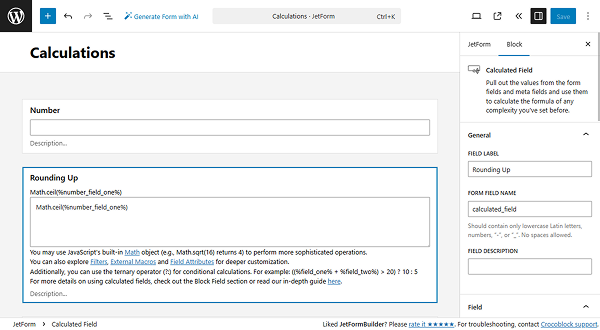
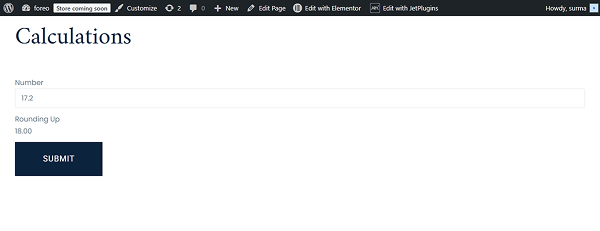
Save the changes, and on the front, the Calculated Field will round up any floating-point value pulled from a separate form field.
Rounding down
To return the largest integer less than or equal to the specified number, add the Number Field to your form and add the following formula to the Calculation Field:
Math.floor(%number_field%)Type in the form Number Field name instead of “number_field”.
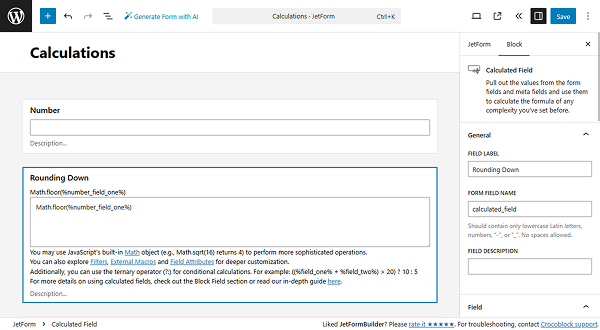
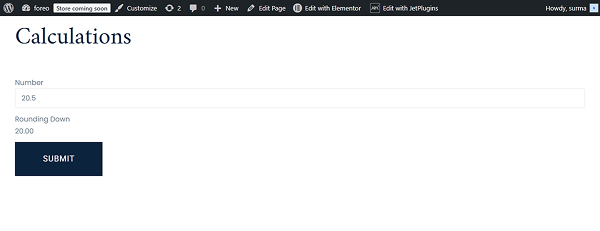
Save the changes and proceed to the front end. The Calculation Field operates correctly.
Finding the largest and the smallest numbers
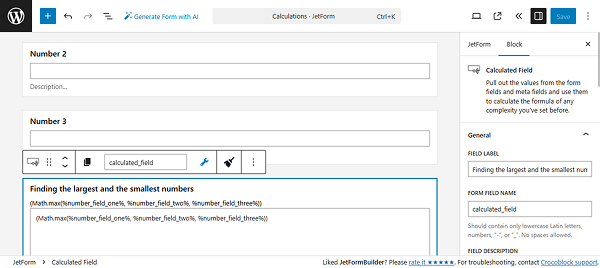
To define the largest or the smallest number, you need at least two Number Fields, and use one of the following formulas inside the Calculation Field:
To find the largest number:
(Math.max(%number_one%, %number_two%, %number_three%))To find the smallest number:
(Math.min(%number_one%, %number_two%, %number_three%))In both cases, remember to change “number_one”, “number_two”, etc., to the names of your form Number Fields.
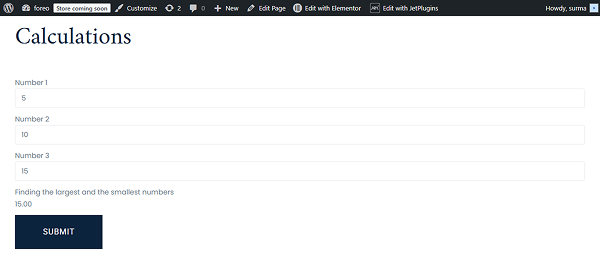
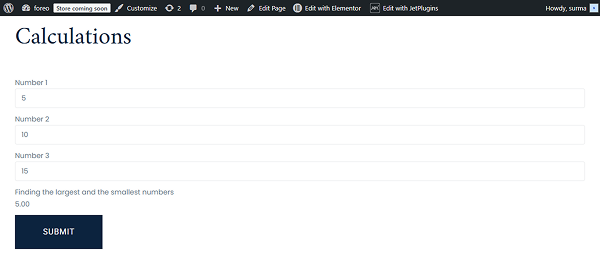
After saving the settings, we can verify that the Calculation Field correctly defines the maximum number on the front end.
Similarly, we can change the formula to get the smallest number and save the settings.
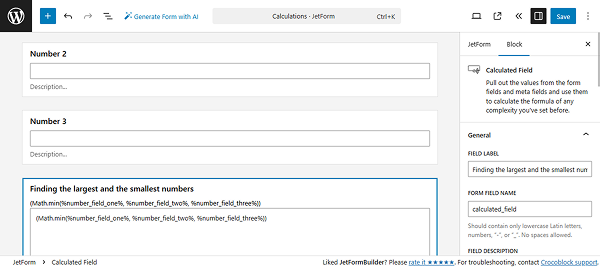
Then, the Calculation Field will return the smallest of the offered numbers.
Exponentiation
When you need to exponentiate the numbers (raise the first specified number to the power of the second number), ensure you add two Number Fields and add the following formula to the Calculated Field:
(Math.pow(%number_one%, %number_two%))Here, “number_one” is a form Number Field #1 name, and “number_two” is a form Number Field #2 name.
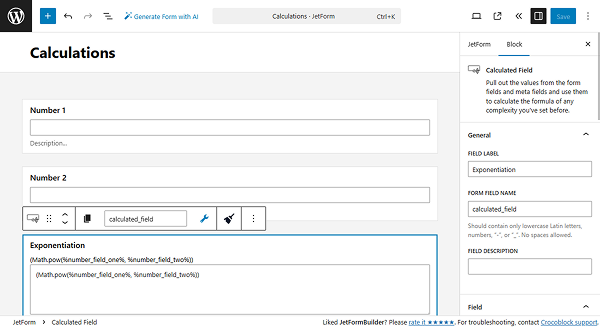
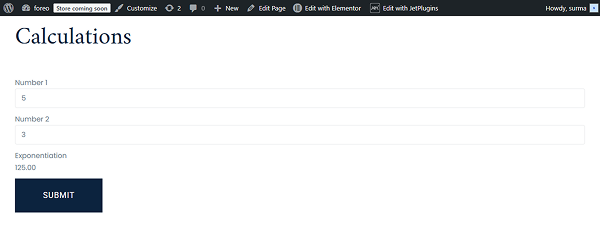
Save the changes and check it on the front. Here, the numbers are exponentiated correctly.
Conditional Statements
To learn about setting up the conditional formulas, refer to our How to Use Conditional Formulas in the Calculated Field guide.
In this article, we will investigate a particular use case in detail in which conditional formulas can be a useful and effective solution.
To set different prices for users of different ages, first create a custom number field for users to store their age.

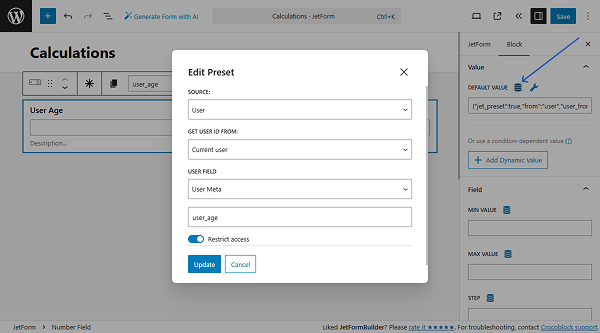
In the form, add the Number Field. In the field’s Value tab, click the “Dynamic Tag” button next to the DEFAULT VALUE field. In the newly opened pop-up, select the “User” SOURCE. Choose the “Current user” option for the GET USER ID FROM and select the “User Meta” for the USER FIELD. Insert the meta field name in the input field. Click the “Update” button.
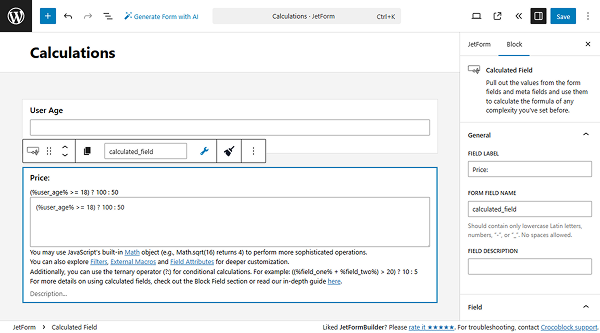
In the Calculation Field, add the following formula:
(%user_age% >= 18) ? 100 : 50Here, the “user_age” is the name of the Number Field in the form. “18” is the age at which you want to limit the content/price. “100” and “50” are the prices you want to apply to users aged 18 or older and those aged 18 or younger, respectively.
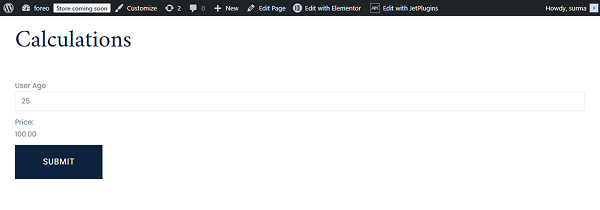
Save the changes and check the frontend page. When the user is 18 or older, the price is “100”.
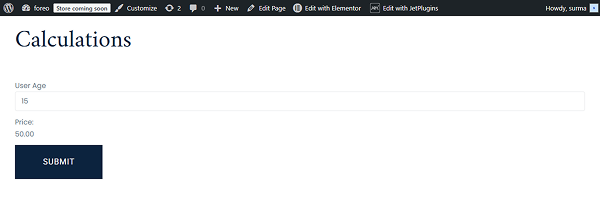
For users under 18, the half-price option will be shown.
Comparison Operators
JetFormBuilder supports ternary operators in Calculated Fields. They allow you to return different calculation results depending on whether a condition is met.
The basic syntax looks like this:
condition ? value_if_true : value_if_falseFor example, if the value of number_field equals 5, the calculated result will be 5 × 100. If the value is not 5, the calculated field will return 0. In order to implement this, add the following formula to the Calculated Field:
%number_field% == 5 ? %number_field% * 100 : 0“number_field” is the name of a Number Field in the form. Instead of a fixed number (5), you can also compare the value against another Number Field or a dynamic value.
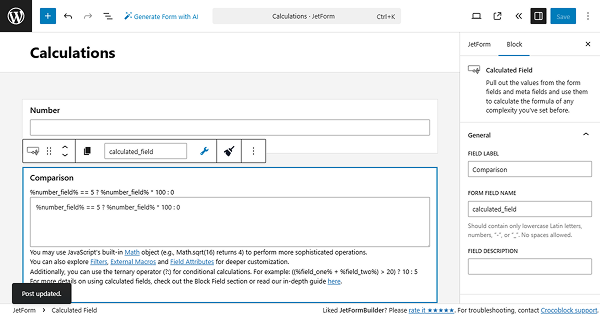
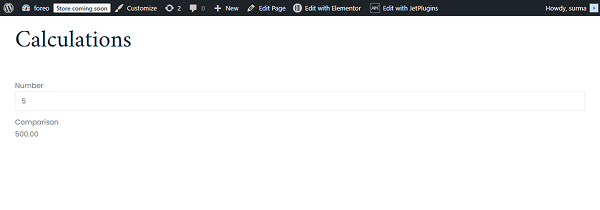
Save the changes and check the front end. When the Number Field has the “5” value, the Calculation Field returns the correct value.
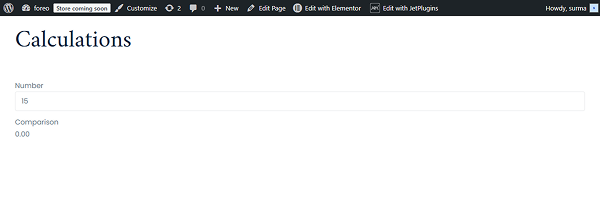
When the value in the Number Field is different, the Calculated Field returns “0”.
JetBooking Calculations
The JetBooking pricing system usually requires various calculations. In this guide, we will investigate the most common JetBooking calculation cases.
Total price
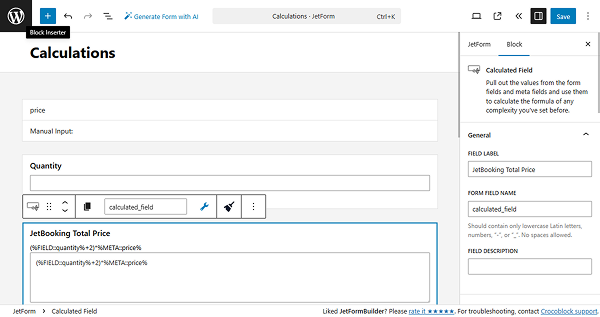
The main formula for total price calculation is suitable for even basic cases. Paste the following formula into the Calculated Field:
(%FIELD::quantity%+2)*%META::price%Here, the “quantity” is a Number Field, “2” is a fixed value, which you can change, and the “price” is the current post JetBooking’s price field (when the form field for price is added).
Total price with additional services
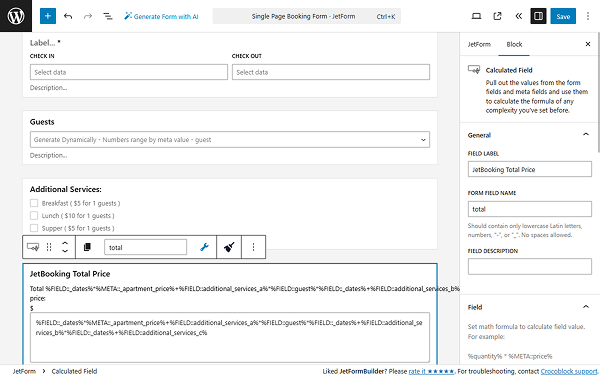
When the total amount needs to be counted based on the selected dates, additional services, or the number of guests, the following form should be used:
%FIELD::_dates%*%META::_apartment_price%+%FIELD::additional_services_a%*%FIELD::guest%*%FIELD::_dates%+%FIELD::additional_services_b%*%FIELD::_dates%+%FIELD::additional_services_c%Here, “_dates”, “additional_services_a”, and “guest” are the form fields used inside the form, while %META::_apartment_price% is the macro that returns the price per 1 day/night.
Total price per hour
When you use a Timepicker field and need to count the price for the hours the customer used the service, the following formula should be used inside the Calculated Field:
( ( %ADVANCED_PRICE::_dates% / 10 ) * 24 ) + ( ( %BOOKING_TIME::check-out-time% - %BOOKING_TIME::check-in-time% ) / 3600 )Here, “ADVANCED_PRICE” is a macro for getting the flexible booking price, “BOOKING_TIME” is the macro to get the price per hour, “_dates” is a date field name, and “check-in-time” and “check-out-time” are the required keywords to retrieve the start and end time (you should not use your form fields’ name instead).
Total price of the WooCommerce order
When you use the WooCommerce-based mode for your booking system, the general simple form for the total price can be used:
(%FIELD::quantity%+2)*%META::price%If you use additional services or need to base the total price on the number of guests or selected days, use the following formula:
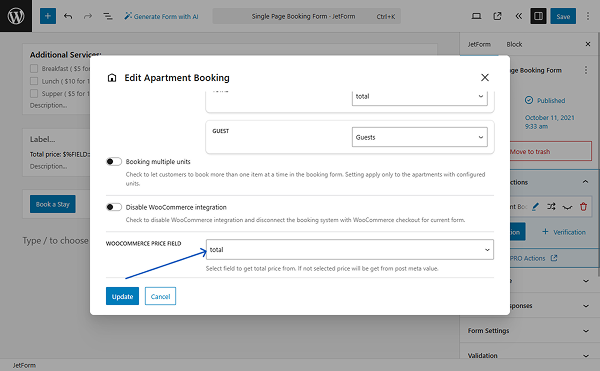
%FIELD::_dates%*%META::_apartment_price%+%FIELD::additional_services_a%*%FIELD::guest%*%FIELD::_dates%+%FIELD::additional_services_b%*%FIELD::_dates%+%FIELD::additional_services_c%In the same booking form built with the JetFormBuilder plugin, we can use a Calculated Field to set the price used in the WooCommerce checkout and order. To do so, open the Post Submit Actions tab and add the “Apartment Booking” action.
In addition to mapping the APARTMENT ID FIELD and CHECK-IN/CHECK-OUT DATE FIELD, we should select the Calculated Field, which contains the advanced price formula as a WOOCOMMERCE PRICE FIELD.
If you leave the WOOCOMMERCE PRICE FIELD empty, WooCommerce will use the value of the Price per 1 day/night meta field of the “Room” Custom Post Type.
Click the “Update” button.
Total price multiplied by the coefficient
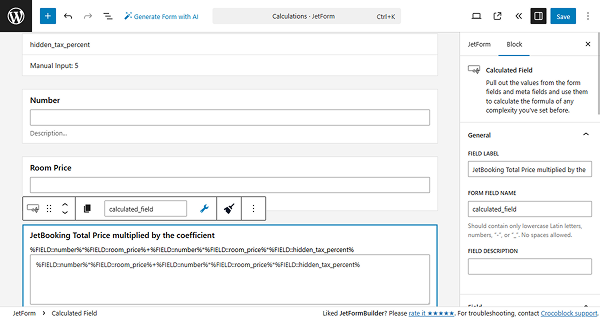
In case you need to multiply the total price by the coefficient, you need to save the needed coefficient in the Hidden Field.
Add the following formula to the Calculated Field:
%FIELD::number%*%FIELD::room_price%+%FIELD::number%*%FIELD::room_price%*%FIELD::hidden_coefficient_percent%Here, “number” and “room_price” are Number form fields, and “hidden_coefficient_percent” is a Hidden Field.
This formula multiplies the number of visitors by the price, then adds 10% of that product as a tax.
Flexible pricing management
When you use flexible pricing, such as seasonal prices, rates, and weekend prices, the following macros should be applied to the formulas:
%ADVANCED_PRICE::_check_in_out%This macro returns the advance rate times the number of days booked and works with the Check-in/Check-out fields.
The %META::_apartment_price% and %META::price% return prices associated with the Custom Post Type.
Tax calculation
Conditions are the main logic in the tax calculation. The settings and the case are described in detail in our Customizing Tax Rates via Calculated Field guide.
The approach for the tax calculation would be similar to the coefficient calculation. We would need to add the Hidden Field with the static tax applied.
%FIELD::number%*%FIELD::room_price%+%FIELD::number%*%FIELD::room_price%*%FIELD::hidden_tax_percent%Here, “number” and “room_price” are Number form fields, and “hidden_tax_percent” is a Hidden Field.
Calculation of the Repeater field values
To get the most detailed information on combining the Calculated Field with the Repeater Field, refer to our How to Combine Hidden Field and Repeater with Calculated Field guide. In this guide, we will summarize the most important formulas.
Calculated field outside a Repeater
When you put the Calculated Field outside the Repeater Field, for example, you want a total based on how many repeater rows are added, use the following formula:
%FIELD::quantity%*%META::price%Here, the %FIELD::quantity% is a macro for the form field value. %META::price% is a macro that returns the current post meta value.
Calculated field inside a Repeater
When you want to calculate values per repeater item before tallying, for instance, each row shows how many adults and kids, and you want the total guests per row, use the following formula in the Calculated Field:
%FIELD::adults% + %FIELD::kids%“adults” and “kids” are the names for the inner Repeater Field. The results can be summed in another Calculated Field outside the repeater.
Combined approach (inside and outside Repeater)
For complex pricing, you can use Calculated Fields within the repeater to compute per-row totals (e.g., the total number of people in that row). Then, use another Calculated Field outside the repeater to aggregate results and produce a final total price.
For example, we have a Repeater Field with Number Fields for adults and kids. In the Repeater Field, there is also a Calculated Field that counts all family members, so we need to sum the adults and kids.
Outside the Repeater Field, we have another Calculated Field to retrieve the total number of guests: we need to sum all family members across all repeaters.
Additionally, the form includes a pricing field (e.g., room price) and a Hidden tax field.
So the final price formula looks like this:
%FIELD::family_members% * %FIELD::choose_a_room% * (1 + %FIELD::tourist_tax%)This multiplies the total number of guests across all repeaters by the selected room price, including tax.
That’s it. Now, you know JetFormBuilder calculated formulas and how to use them for dynamic forms in WordPress. In this guide, we explored simple arithmetic, advanced, conditional, and JetBooking calculation formulas.