
How to Configure the Media Field: Attachment and Field Formats
This tutorial focuses on how file uploads actually work in JetFormBuilder Media Field and what the difference is between the Attachment field values of storing the media files. We will explain how Media Field settings affect:
Additionally, we will find answers and solutions for the common confusion, such as not showing an image, only a link is visible, or no image preview on the backend.
Table of Contents:
- How WordPress Handles Files Added via Form
- Media Field Attachment Value Formats
- File Stored Not in Attachment
- Guests’ Uploads
- FAQ
Here is the preview comparison table:
| Storage Type | Best For | Media Library Storage | Backend Preview | Frontend Display | WP Features Support |
| URL No Attachment | Simple file uploads | No | No | Limited | No |
| URL Attachment | Rarely recommended | Yes | No | Limited | No |
| ID Attachment | Best for images | Yes | Yes | Yes | Yes |
| Array (ID + URL) Attachment | Advanced use cases | Yes | Limited | Limited | Limited |
| IDs Array Attachment | Multiple image uploads | Yes | Yes | Yes | Yes |
How WordPress Handles Files Added via Form
When setting up the Media Field, you can decide whether the inserted file will be in the Attachment.
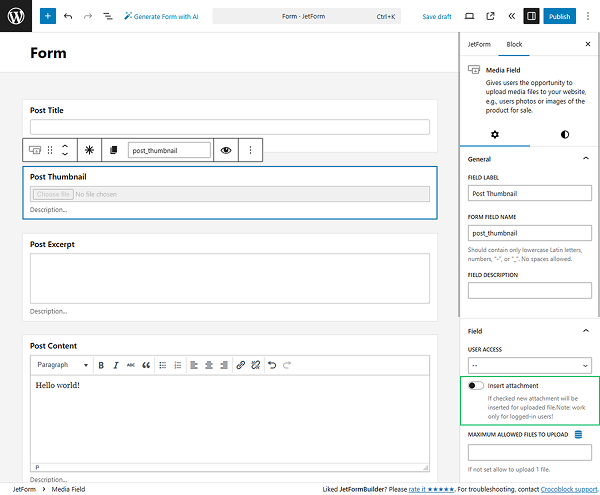
What does it practically mean:
- When the Insert Attachment toggle is off, the media file or its URL can be saved in the Form Records or in the meta field in case you insert/update a post/CCT item/user.
- When the Insert Attachment toggle is on, the media files are saved in a separate “Attachment” folder and displayed in the Media Library.
The way you store the file defines how it behaves later.
Media Field Attachment Value Formats
Refer to our Media Field article to get a full field overview. Here, we want to focus on the FIELD VALUES available:
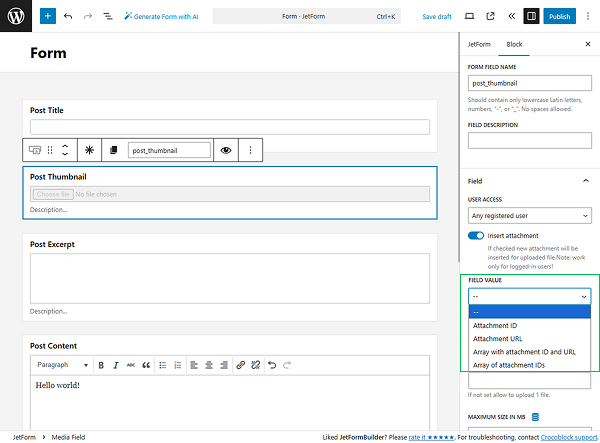
- Attachment ID — allows for storing the ID of the file;
- Attachment URL — allows for storing the URL of the file;
- Array with attachment ID and URL — allows for storing both: ID and URL of the file;
- Array of attachment IDs — allows for storing the list of files’ IDs.
According to the configuration of the Insert Attachment and the FIELD VALUE settings, the JetFormBuilder Media Field offers flexibility in file storage formats. Further, we have a glance at different possible scenarios and explain what they affect.
Attachment ID
When media files are stored with the “Attachment ID” option selected, the file is saved following the next steps:
- the file’s ID is stored in the created/updated post’s meta field;
- a new Attachment post is created for this image;
- the image displayed in the Media Library.
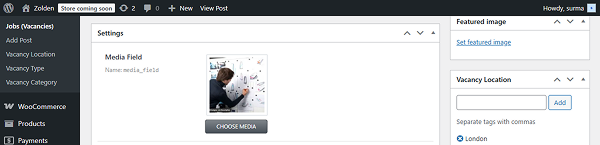
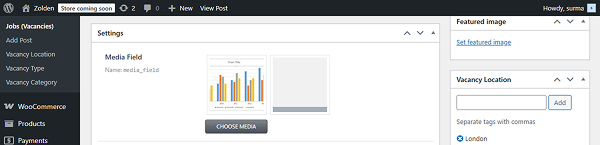
These two posts are connected now because the file’s ID is saved in the wp_postmeta. And as far as the Attachment post saves the size of the image, it can be rendered properly, and we see the image preview on the backend of the created/updated post.
Attachment URL
When the “Attachment URL” value is applied to the Media Field and the form is aimed to insert/update a post/CCT item/user, here is what happens to the image once the form is submitted:
- the URL of the media file is saved in the created/updated post’s meta field;
- a new Attachment post is created for this image;
- the image displayed in the Media Library.
These two posts are not connected.
On the backend of the created/updated post, there will be no preview of the image. You will see a gray square. It is okay for this setup — the media file is saved.
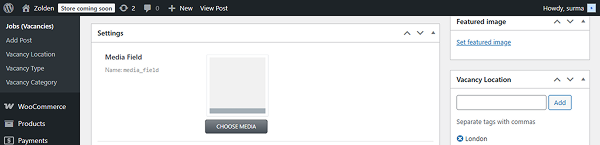
It happens because WordPress does not distinguish the type of file uploaded by its’ URL (it can be PNG, PDF, doc, or an audio file) — that is why there is no preview of the file.
Array with attachment ID and URL
The same logic applies here. When you use the “Array with attachment ID and URL” option:
- IDs and URL of media files are saved in the created/updated post’s meta field;
- new Attachment posts are created for these images;
- images are displayed in the Media Library.
The preview on the backend of the created/updated post also depends on the way you used to store the media files:
- files stored as IDs will have the preview;
- files stored as URLs will have no preview.
Array of attachment IDs
Consequently, when you store the media files as the “Array of attachment IDs,” they will:
- have media files’ IDs saved in the created/updated post’s meta field;
- new Attachment posts are created for these images;
- images displayed in the Media Library;
- attachment posts will be connected to the created/updated CPT post;
- images will be previewed on the backend of the created/updated post.
Storing images for CCT items
The same logic is applied to the media files from CCT. The only difference is that the CCT stores everything in one database table, while CPT is stored in the wp_post table, and its’ metadata with IDs and URLs is stored in the wp_postmeta table.
File Stored Not in Attachment
Let’s consider the case where the media file is stored as a URL and is not saved in the Attachment. Technically, here is what happens:
- media file saved in plugin folder (Forms Records);
- the media file is not stored in the Media Library;
- In the database, the file is stored as a URL.
There will be no preview on the backend of the created/updated post. On the frontend, the image can be displayed if the component uses a URL. This is how it works with the most popular solutions:
| Use case | Works? |
| Dynamic Image | Yes |
| Elementor Image (dynamic tag) | Yes |
| Dynamic Field + “Get Image by ID” callback | No |
| Dynamic Field | Yes (will display a link) |
| Email attachment preview | No |
Storing files as URLs without adding them to the Media Library can be useful in the following cases:
- when you need simple uploads;
- when you need to upload not only media files (PDF, docs);
- when you are not intending to save the files to the Media Library.
The key point of such a setup is that WordPress treats the uploaded object as a file, not an image.
Guests’ Uploads
Handling file uploads from non-logged-in users is a common scenario in forms like applications, contact forms, or profile submissions. The JetFormBuilder Media Field works the same way for guests as it does for registered users — but there are a few important details that affect how files are stored and used later.
There is no limitation on file uploads for guests — the same logic applies as for logged-in users. However, since the user is not authenticated, WordPress does not associate the upload with a specific user account. This makes your field configuration even more important.
The key difference in guest uploads is not whether the file uploads, but how it is stored and referenced.
If the file is stored as URL:
- the file is treated as a simple link;
- there is no connection to the WordPress Media Library;
- no preview, no metadata, no resizing for the image.
If the file is stored as Attachment:
- a full WordPress attachment post is created;
- the file appears in Media Library;
- WordPress generates image sizes and metadata;
- preview on the backend of the CPT post.
This distinction becomes critical when you later:
- display images on the frontend;
- use them in emails;
- assign them to user profiles or posts.
It is important to emphasize that for guest uploads, there is no user ownership:
- files are not linked to a user account;
- you cannot rely on “uploaded by user” logic;
- you must explicitly define where the file is stored (post, CCT, meta field, etc.)
FAQ
For most cases, especially when working with images, the best option is “Attachment ID”.
It ensures proper integration with WordPress features, including backend preview, dynamic image widgets, and email compatibility.
This usually happens when the file is stored as a URL instead of an “Attachment ID”.
When only the URL is saved, WordPress treats the file as a generic link and does not generate a preview. To fix this, enable the Insert Attachment toggle and select “Attachment ID” as the form FIELD VALUE, and in the CPT field settings, select the “Media ID” for the Value format.
The difference between attachment ID vs. URL JetFormBuilder lies in how WordPress handles the file:
– “Attachment ID” — the file becomes a WordPress media object (Attachment post type) with metadata and preview, and is displayed in the Media Library;
– “Attachment URL” — the file is treated as a simple link without metadata or preview, and is not displayed in the Media Library.
This directly affects how the file behaves in templates, admin, and emails.
This happens when the file is stored as a URL, and the widget used does not render images from URLs. To display the image, either:
– use a widget that supports URL-based images (e.g., Dynamic Image), or
– switch to “Attachment ID” format.
Yes, guest uploads are fully supported in WordPress form file upload JetFormBuilder scenarios. However:
– files are not linked to a user account;
– you must explicitly define how and where the file is stored.
For best results, use the “Attachment ID” to ensure the file can be reused later.
This happens when the Insert Attachment toggle is disabled. In this case, files are stored in the plugin directory and saved as URLs, not as WordPress media objects.
To make files appear in the Media Library, enable Insert Attachment.
If the file is stored as a URL, email actions may not render it as an image. Using “Attachment ID” ensures better compatibility, as WordPress can properly reference and process the file.
Array formats (ID + URL or multiple IDs) are useful when:
– uploading multiple files;
– working with custom logic or advanced development scenarios.
For standard use cases, a single “Attachment ID” is usually the best choice.
That’s it. Now you know how the settings of the Attachment FIELD VALUES in JetFormBuilder Media Field affect the backend preview, frontend output, and the media file usability.